Setting Up a Compatible Development Environment with Docker- Part 1


In today’s software development landscape, ensuring a compatible development environment across different machines and operating systems can be a challenge. Developers often face issues with library versions, dependencies, and configuration mismatches. Docker, a popular containerization platform, provides a powerful solution to this problem. In this blog post, we will explore how Docker can be used to set up a compatible development environment for your projects, allowing you to eliminate inconsistencies and streamline collaboration.
Understanding Docker and Containers
Docker is an open-source platform that enables developers to build, package, and distribute applications as lightweight, portable containers. Containers provide a consistent and isolated environment for running applications, ensuring that they work seamlessly across different operating systems and computing environments
The benefits of Docker for software development are numerous:
- Consistency: Docker allows developers to define the exact environment needed for their applications, including the operating system, libraries, and dependencies. This ensures that the application runs consistently across different development machines, reducing the chances of “it works on my machine” issues.
- Portability: Docker containers encapsulate the entire runtime environment, including the application and its dependencies. This makes it easy to run the same containerized application on different machines, cloud platforms, or even in production, without worrying about compatibility issues.
- Efficiency: Docker containers are lightweight and provide a highly efficient way of packaging and deploying applications. They only include the necessary components, resulting in faster startup times and reduced resource consumption.
- Scalability: With Docker, applications can be easily scaled by running multiple instances of the same container on a cluster of machines. Docker’s orchestration tools, such as Docker Swarm or Kubernetes, simplify the management and scaling of containerized applications.
- Collaboration: Docker enables seamless collaboration between team members by providing a consistent development environment. Developers can share Docker images or Docker Compose files to ensure that everyone is working with the same dependencies and configurations.
- Version control: Docker configuration files, such as Dockerfiles and Compose files, can be stored in version control systems like Git. This allows teams to track changes, revert to previous versions, and collaborate on the development of Docker-based projects.
Containers are a foundational concept in Docker that enable the creation and deployment of applications in a lightweight and isolated environment.
In traditional software development, applications are typically run directly on the host operating system. However, this approach can lead to various issues, such as compatibility problems between different applications and dependencies, difficulty in reproducing the exact runtime environment, and conflicts arising from shared resources.
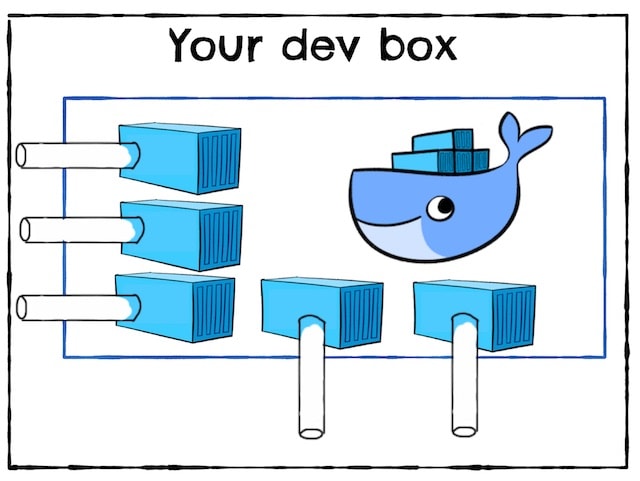
Containers solve these challenges by encapsulating an application and its dependencies into a self-contained unit, providing a consistent and isolated runtime environment. Each container runs as an isolated process, separate from other containers and the host system, while sharing the host kernel. This isolation ensures that any changes or modifications made within a container do not affect other containers or the underlying host system.
Installing Docker
Installing Docker on Windows (Please refer: https://docs.docker.com/desktop/install/windows-install)
Installing Docker on macOS (Please refer: https://docs.docker.com/desktop/install/mac-install)
Installing Docker on Linux (Please refer: https://docs.docker.com/desktop/install/ubuntu/)

Creating a Docker Image for Development
Docker images are the key building blocks of Docker containers. They are self-contained packages that contain everything needed to run an application, including the code, runtime environment, system tools, libraries, and dependencies. Images provide a consistent and portable representation of an application’s environment, ensuring that it can run reliably on any machine or platform that supports Docker.
The concept of Docker images revolves around the idea of containerization. Rather than installing and configuring software directly on a host system, Docker allows developers to package their applications and their dependencies into isolated, lightweight containers. These containers are based on Docker images, which serve as the blueprint for creating and running containers.
Here’s how Docker images are used to create consistent environments:
- Image Creation: Docker images are typically created using a declarative approach, defined by a file called a Dockerfile. The Dockerfile contains a set of instructions that specify the base image, the required dependencies, any configuration settings, and the steps to set up the application’s environment. By following these instructions, Docker builds the image layer by layer.
- Image Distribution: Once an image is created, it can be stored in a registry such as Docker Hub or a private registry. Docker images can be versioned, tagged, and shared among developers or across different environments. This allows for easy collaboration, reproducibility, and scalability.
- Containerization: To create a container from an image, Docker uses a process called instantiation. When a container is created, it is an isolated instance that runs in its own environment based on the underlying image. Containers are lightweight and can be started, stopped, or moved between different environments without affecting the host system or other containers.
- Consistent Environments: Docker images ensure consistent environments by encapsulating all the required dependencies and configurations. This eliminates issues related to differences in operating systems, libraries, or system configurations. Developers can build and test applications in the same environment that will be used in production, minimizing the chances of “it works on my machine” problems.
- Scalability and Reproducibility: Docker images enable easy scalability and reproducibility. Multiple containers can be created from the same image, allowing applications to scale horizontally to meet demand. The image’s versioning and tagging capabilities facilitate reproducibility, enabling developers to roll back to previous versions or create consistent environments across different stages of development and deployment.
Different approaches for creating Docker images
Using an Existing Base Image
- Docker provides a wide range of pre-built base images available on Docker Hub. These base images contain a minimal operating system with specific configurations and tools.
- You can choose a base image that closely matches your application’s requirements. For example, if you’re building a Node.js application, you can start with the official Node.js base image.
- By using a base image, you leverage the pre-configured environment and dependencies it provides, saving time and effort in setting up the basics.
- You can customize the base image by adding your application code, additional libraries, configurations, and executing setup commands in a Dockerfile.
- The use of base images promotes reusability, as multiple applications can be built upon the same base image, ensuring consistency across projects.
Building from Scratch
- In some cases, you may want complete control over the environment and prefer to build your image from scratch.
- Building from scratch involves starting with an empty base image, also known as a “scratch” image, and manually installing and configuring all the required dependencies and tools.
- This approach allows for a minimal and highly customized image, containing only the necessary components for your application.
- Building from scratch is useful when you have specific requirements or security concerns that are not covered by existing base images.
- However, building from scratch requires more effort, as you need to carefully manage and include all the required dependencies and configurations in your Dockerfile
When deciding between these approaches, consider the trade-offs of convenience versus control and the specific needs of your application. Using an existing base image is generally recommended unless you have specific requirements that cannot be met by available base images.
Ultimately, the choice of approach depends on factors like the nature of your application, available base images, desired control, and the need for customization.
Example Dockerfile to demonstrate the process
Here’s an example Dockerfile to demonstrate the process of creating a Docker image using an existing base image:
# Use an official Node.js base image with a specific version
FROM node:14-alpine
# Set the working directory inside the container
WORKDIR /app
# Copy the package.json and package-lock.json files to the working directory
COPY package*.json ./
# Install dependencies
RUN npm install
# Copy the application source code to the working directory
COPY . .
# Expose a port (if your application requires it)
EXPOSE 3000
# Define the command to run when the container starts
CMD ["node", "index.js"]
In this example, we are using the official Node.js base image (specifically version 14-alpine) from Docker Hub. Here’s a breakdown of the Dockerfile:
- FROM node:14-alpine: Specifies the base image to use. In this case, it’s the Node.js base image with Alpine Linux as the underlying operating system.
- WORKDIR /app: Sets the working directory inside the container where subsequent commands will be executed.
- COPY package*.json ./: Copies the package.json and package-lock.json files from the host machine to the working directory in the container.
- RUN npm install: Runs the npm install command inside the container to install the application dependencies.
- COPY . .: Copies the entire application source code from the host machine to the working directory in the container.
- EXPOSE 3000: Informs Docker that the application inside the container will listen on port 3000 (you can change this to match your application’s required port).
- CMD [“node”, “index.js”]: Defines the command to run when the container starts. In this case, it runs the Node.js application using the “node” command and specifies the entry point file as “index.js”.
To build the Docker image using this Dockerfile, navigate to the directory containing the Dockerfile and run the following command:
docker build -t myapp .This will build the Docker image with the tag “myapp” based on the instructions in the Dockerfile. You can then run a container using this image with the command:
docker run -p 3000:3000 myappThis example demonstrates the basic structure and commands commonly used in Dockerfiles. You can customize it further based on your specific application’s requirements and add additional steps, configurations, or dependencies as needed.
Final Thought
By leveraging Docker for setting up a compatible development environment, developers can eliminate the hassle of configuration mismatches and ensure consistent deployments across different machines.
In this blog post, you got familiar with the basics of Docker, from installation to creating Docker images. Armed with this knowledge, you can now leverage Docker to streamline your development workflow and focus on building great software. However, our docker series is far from over. There’s more to come in Part 2, where we’ll break down how to master handling dependencies using Docker Compose. Stay tuned!
Author Details

Yoginath brings a wealth of experience to the table, spanning JavaScript, Node.js, React, Angular, PHP, and Python. Currently serving as an Associate Solution Architect at West Agile Labs, he is deeply passionate about continuous learning and technology exploration.